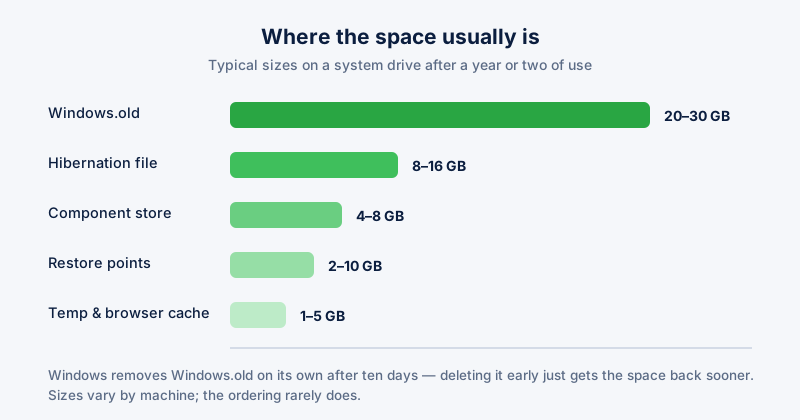
After a Windows feature update, a folder called Windows.old appears on your system drive. On a typical machine it holds 20 to 30 GB. It is one of the largest single things you can safely remove from a Windows PC — with an important condition attached.
What Windows.old is for
Windows.old is your previous Windows installation, kept intact so the update can be rolled back. If the new version breaks a driver or an application you depend on, Windows can put the old one back using this folder. That is its only purpose.
Windows deletes it automatically after ten days. If you are inside that window and the update has been fine, you can delete it early and get the space back now. If you are past ten days, it should already be gone; if it is still there, something interrupted the cleanup and removing it manually is safe.
Once Windows.old is gone, you cannot roll back the feature update through Settings. Reinstalling the previous version means a clean install. Give the new version a few days of normal use before deleting.
The right way to delete it
Do not delete the folder in File Explorer. Its contents are owned by the system and partially locked; dragging it to the Recycle Bin typically fails partway through and leaves an unusable folder you then cannot remove. Use the built-in cleanup tool instead, which knows how to release the files first.
- Open Settings, then System, then Storage.
- Click your system drive, then Temporary files.
- Tick "Previous Windows installation(s)". Untick anything you want to keep — Downloads is sometimes listed here and is not temporary.
- Click Remove files and let it finish. It can take several minutes.
On older builds the equivalent tool is Disk Cleanup: press Win + R, run "cleanmgr", pick your system drive, then choose "Clean up system files" and tick "Previous Windows installation(s)".
Other large items worth checking
- hiberfil.sys — the hibernation file, often several gigabytes. Removable if you never hibernate, by running "powercfg /h off" from an elevated prompt.
- The component store (WinSxS) — grows over time with update history and can be compacted safely.
- Delivery Optimization files — cached Windows update data that other PCs on your network can pull from.
- Old restore points — useful, but a long history of them can occupy a lot of space.
ETA System Doctor's Deep System Cleanup covers these together and shows what each one will free before anything is removed, so you can decide item by item rather than trusting a single Clean button.