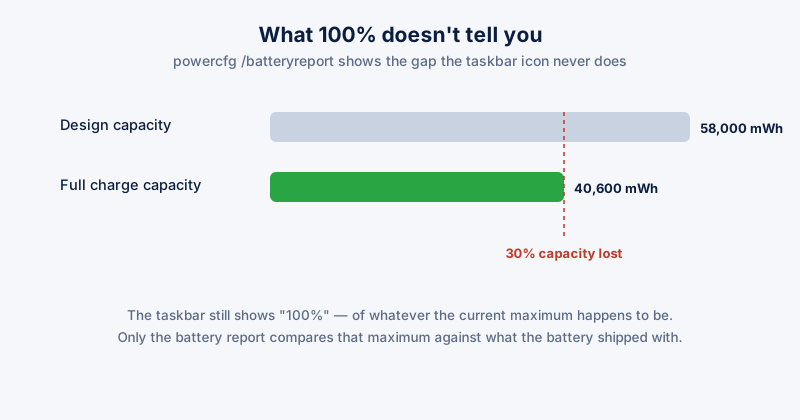
The battery percentage in your taskbar tells you how full the battery is right now, out of whatever its current maximum capacity happens to be. It says nothing about whether that maximum capacity is 95% of what the battery shipped with, or 60%. Two laptops both showing 100% can have meaningfully different real-world runtime, and Windows doesn't surface that gap anywhere obvious.
Getting the real numbers
Windows has a built-in battery report you won't find in Settings — it's generated from the command line.
- Open Command Prompt (search for it in the Start menu — no need to run as administrator)
- Run: powercfg /batteryreport
- It saves an HTML file, usually to your user folder — the command output tells you the exact path
- Open that file in a browser and look at Design capacity vs. Full charge capacity near the top
The gap between design capacity and full charge capacity is your battery's actual wear. A battery at 80% of its design capacity is functioning normally for its age — it's a gradual, expected decline, not a fault.
What speeds up the decline
Lithium-ion batteries degrade from cycling and from heat, and both are more within your control day to day than most people assume.
- Sitting at 100% while plugged in, constantly. Keeping a lithium-ion battery fully charged for long stretches accelerates wear more than cycling it normally does. If your laptop lives on a desk plugged in permanently, this is usually the single biggest factor.
- Heat. Charging while the laptop is also under heavy load (gaming, rendering) runs the battery hotter than charging while idle, and heat is a bigger long-term stressor on capacity than the charging itself.
- Deep discharges. Regularly running down to near 0% before charging again is harder on the battery than charging from 40-50%.
- Cheap or damaged chargers. Unstable voltage from a non-genuine charger stresses the battery's charging circuitry over time.
Practical habits, not extremes
You don't need to obsessively keep a laptop between 20% and 80% to see a real benefit — that's the theoretical ideal, but treating it as a hard rule for a laptop you actually use daily usually isn't worth the inconvenience. The habits that matter more in practice:
- If the laptop is mostly desk-bound, unplug it occasionally rather than leaving it charging 24/7
- Avoid leaving it charging in direct sun or on a soft surface that blocks ventilation while gaming or rendering
- Don't let it repeatedly run flat to 0% and auto-shutdown — plug in well before that point
- Use the manufacturer's official charger where possible
When to actually worry
A battery report showing 15-20% capacity loss after two to three years of regular use is normal aging, not a defect. Worth paying attention to instead: capacity dropping sharply over a short period, the battery visibly swelling (stop using it immediately and have it inspected — this is a real safety issue, not just a performance one), or the laptop shutting down unexpectedly well above 0%.
ETA System Doctor's Battery Doctor reads this same underlying Windows battery data and shows your real capacity loss without needing to run powercfg by hand, and its Battery Energy Report and Unplug Reminder flag which apps are draining the most right now and nudge you when the laptop has been sitting fully charged and plugged in longer than it needs to be.