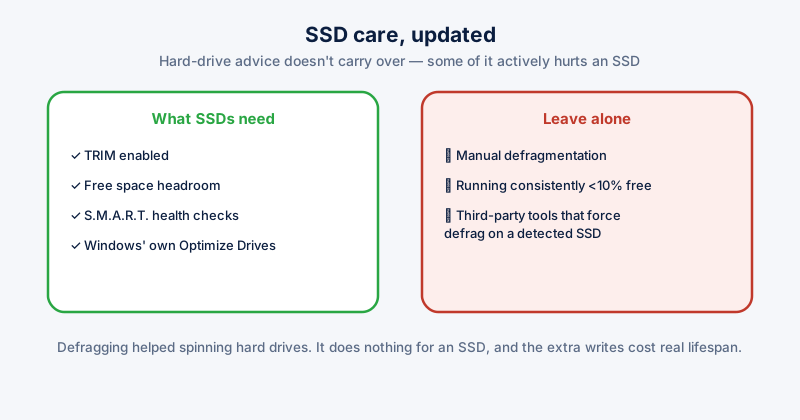
A lot of PC maintenance advice was written for spinning hard drives and never got updated for SSDs, and nowhere is that more obvious than defragmentation. Defragging a traditional hard drive genuinely helped, by physically rearranging data to reduce how far the read head had to travel. An SSD has no read head and no meaningful benefit from that — worse, unnecessary write cycles are the one thing that actually shortens an SSD's lifespan.
What SSDs actually need: TRIM
TRIM tells the drive which blocks of data are no longer in use (because you deleted the file) so the SSD's controller can clean them up in the background, ahead of time, rather than being caught off guard mid-write. Without TRIM working correctly, write performance degrades over time as the drive has to do that cleanup work reactively, during the write itself, instead of proactively.
Windows enables TRIM automatically for SSDs and runs it on a schedule. Confirming it's actually on:
- Open Command Prompt and run: fsutil behavior query DisableDeleteNotify
- A result of 0 means TRIM is enabled (delete notifications are not disabled) — this is the expected state
- A result of 1 means it's disabled — run fsutil behavior set DisableDeleteNotify 0 to turn it back on
Windows' own "Optimize Drives" tool (search for it in the Start menu) actually already handles this correctly — it detects an SSD automatically and runs TRIM instead of a traditional defrag, on a weekly schedule by default. Manually running "Defragment" against an SSD from third-party tools that don't detect drive type properly is the scenario actually worth avoiding.
What matters more than TRIM: keeping free space
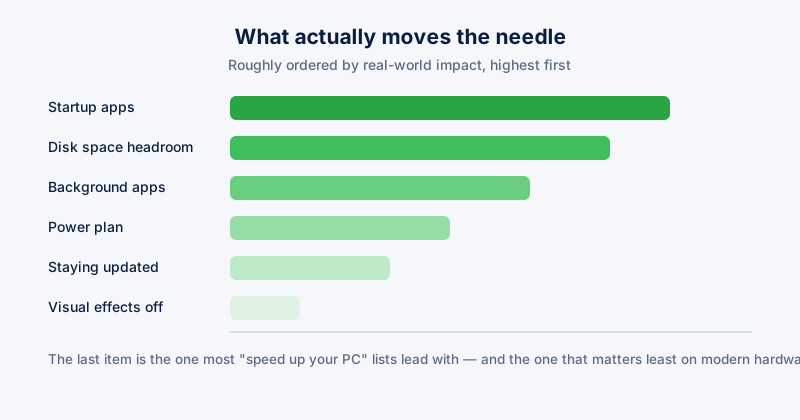
SSD write performance and the drive's own wear-leveling algorithms both depend on having enough unused space to work with. As a drive fills up, both write speed and long-term endurance degrade — a nearly-full SSD is measurably slower than the same drive with 15-20% free, independent of TRIM working perfectly.
Monitoring drive health
SSDs report their own health via S.M.A.R.T. data — remaining estimated lifespan, reallocated sector counts, and total bytes written. Windows' Optimize Drives tool shows basic health status, and third-party tools can show the full S.M.A.R.T. detail if you want to track wear over time. A drive reporting degraded health, or Windows suddenly showing disk errors that weren't there before, is worth backing up from immediately — SSD failure tends to be sudden rather than gradual once it starts.
What actually shortens SSD life
- Running consistently near-full (under 10% free) for extended periods
- Extremely high write volumes — constant large file transfers, some poorly-configured logging or caching software — over years
- Using third-party "optimizer" tools that force traditional defragmentation on an SSD, unaware it's solid-state
ETA System Doctor's Disk Optimizer & Health runs the correct operation automatically based on your actual drive type — TRIM for SSDs, defrag for HDDs — and shows live health status alongside a Disk Space Forecast estimating how many days until the drive fills up at your current usage rate.