Windows Defender Firewall is on by default on every supported version of Windows, which is exactly why most people never check it — it's assumed to just work. It usually does. But "on" is not the same question as "configured correctly," and the two things that quietly break it are a disabled network profile and an inbound rule some app opened months ago and never closed.
Check the state, not just the icon
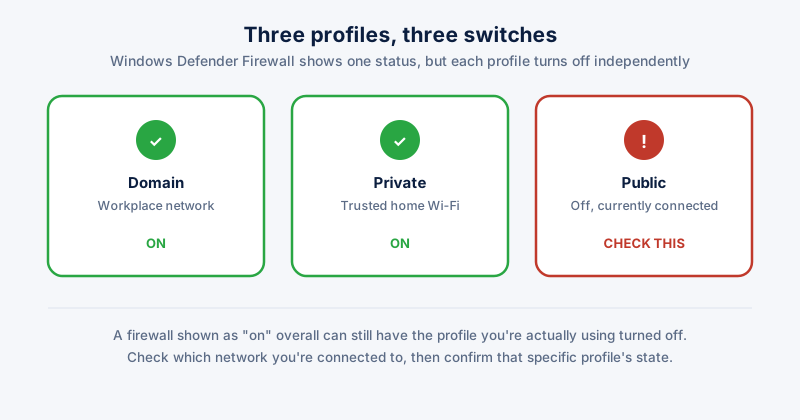
Open Settings, then Privacy & security, then Windows Security, then Firewall & network protection. You'll see three profiles: Domain, Private, and Public. Each has its own independent on/off switch — this is the detail people miss. A PC can show the firewall as "on" while the specific network profile you're currently connected to is off.
- Domain network — applies when your PC is joined to a Windows domain (mostly workplaces)
- Private network — your home Wi-Fi, once you've told Windows to trust it
- Public network — coffee shops, airports, anywhere you haven't marked as trusted
If you're not sure which profile is active, click on the network icon in the taskbar. Windows labels the current connection as Private or Public network right there.
Confirm it's actually filtering traffic
The Settings toggle tells you the service is enabled, not that a specific port is closed. For that, open an elevated Command Prompt and run:
- netsh advfirewall show allprofiles — shows the state of all three profiles at once, useful if the Settings app disagrees with itself after an update
- netsh advfirewall firewall show rule name=all — lists every rule, which is long but is the ground truth of what's actually allowed through
The part that actually matters: audit your inbound rules
A firewall that's "on" with fifteen inbound rules open to Any remote address is providing far less protection than the green checkmark suggests. Every app you've ever installed that wanted network access — game servers, file-sharing tools, remote desktop software, a printer driver — may have added its own rule, and very few of them get removed when you uninstall the app.
Open Windows Defender Firewall with Advanced Security (search for it in the Start menu) and look at Inbound Rules. Sort by "Action" to see everything set to Allow, then check the Scope for each — a rule allowing traffic from Any IP address is a much bigger opening than one scoped to your local subnet.
- A rule you don't recognise, tied to an app you no longer have installed — disable it
- A rule allowing a specific port from Any remote address, for software you only ever use locally — narrow the scope or disable it
- Remote Desktop (port 3389) enabled and open to Any address on a laptop that travels — this is one of the most common ways home PCs get scanned and probed
What a healthy setup looks like
All three profiles on, Public profile treated as untrusted by default (Windows does this automatically once you mark a network as Public), and an inbound rule list you could explain the reason for if someone asked. That last part is the one almost nobody has, because rules accumulate silently over years of installing and uninstalling software.
ETA System Doctor's Firewall Rule Auditor does the inbound-rule review above automatically — it flags exactly which rules are open to any remote address so you can see what's actually exposed without reading through Advanced Security's full rule list by hand.