Most malware wants to be run. A rootkit wants to not be seen — by you, by Task Manager, and often by the antivirus running on the same machine. That distinction is what makes rootkits worth a dedicated guide instead of folding them into general malware removal: the detection method has to be different, because the malware is specifically designed to defeat the normal one.
What makes a rootkit different
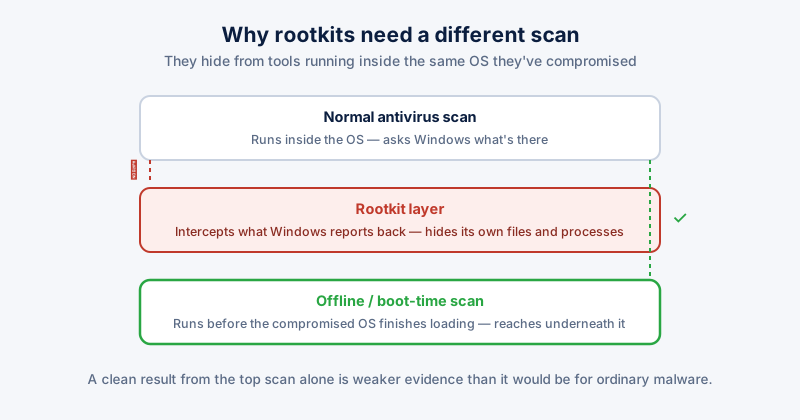
A standard piece of malware runs as a process you could, in principle, find in Task Manager and end. A rootkit modifies the operating system itself — at the driver level, or in some cases before Windows even finishes loading — so that the tools you'd use to look for it are fed false information. If the rootkit intercepts the same system calls Task Manager and File Explorer use to list processes and files, it can simply omit itself from the results.
This is why "I ran a scan and it came back clean" is weaker evidence against a rootkit than against ordinary malware — a rootkit running at a deep enough level can hide from a scanner running inside the same infected operating system.
Signs worth taking seriously
- Antivirus software that keeps disabling itself, or updates that silently fail
- Noticeable slowdowns or unusual network activity with no application to explain it
- Settings that revert on their own — a changed homepage, a re-enabled service, a security setting that won't stay off
- Windows Defender or your antivirus reporting a threat that then reappears after a clean scan
None of these are proof by themselves. They're common causes of normal software conflicts too. Treat them as a reason to check further, not a diagnosis.
Detection that actually works
The reliable approach is to scan from outside the environment the rootkit controls.
- Boot-time or offline scanning. Windows Defender's offline scan (Windows Security → Virus & threat protection → Scan options → Microsoft Defender Offline scan) restarts your PC into a minimal environment before the main Windows installation — and any rootkit hiding in it — finishes loading. This is the single most effective built-in tool against rootkits specifically.
- A second opinion scanner from bootable media. Several vendors provide a rescue disk you boot from USB, which scans the drive from a clean OS entirely separate from the one that might be compromised.
- Checking for unsigned or unexpected drivers. Rootkits frequently install as a kernel driver. Signed driver enforcement (on by default on modern Windows with Secure Boot) blocks most of them from loading in the first place — confirm Secure Boot is actually enabled in your BIOS/UEFI settings, since it's occasionally turned off by a BIOS reset or a dual-boot setup.
If a rootkit is confirmed
This is the one category of infection where "clean it and keep going" is genuinely bad advice. Because a rootkit operates below the level normal removal tools can fully verify, the only guarantee that it's actually gone is a full reinstall of Windows from trusted, verified installation media — after backing up personal files (documents, photos) but not backing up and restoring the entire system image, which could reintroduce the same infection.
- Back up documents and personal files only, not application installs or full system images
- Reinstall Windows from official Microsoft installation media, not a recovery partition on the same infected drive
- Change passwords for anything you logged into from the infected machine, from a different, known-clean device
ETA System Doctor's Rootkit & Defender Scans run alongside your existing antivirus rather than replacing it, and surface Windows Defender's own scan status in-app so you can see whether a deep scan has actually completed recently instead of assuming it has.