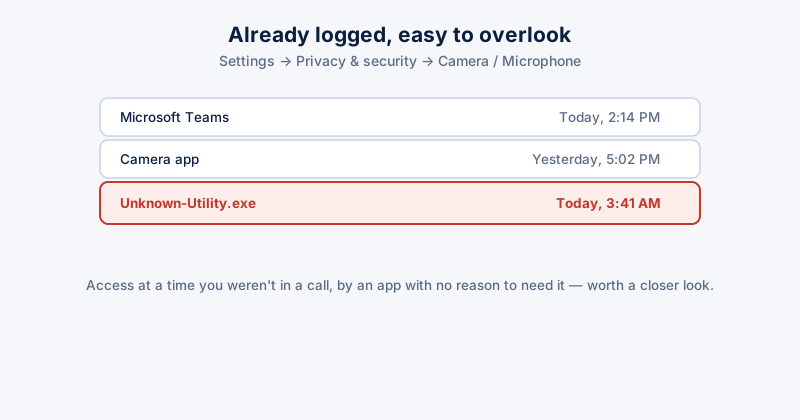
Windows already tracks which apps have used your camera and microphone and when — the information exists, it's just tucked away in a settings page most people never open. Checking it takes under a minute and answers a question a lot of people wonder about but rarely act on.
Where to actually look
- Settings → Privacy & security → Camera. Scroll down to "Let apps access your camera" and below it, a list of apps with recent activity shown for each one
- Settings → Privacy & security → Microphone shows the same thing for audio access
- Both pages show which apps currently have permission, and which ones have actually used it recently — those are two different questions worth reading separately
"Has permission" and "has actually used it" are not the same thing. Plenty of apps request camera or microphone access during setup and never use it again — that's normal and not itself a concern. The activity timestamp is the part worth reading closely.
What a normal history looks like
- Video calling apps (Teams, Zoom, Discord) with access times matching calls you actually remember taking
- Your browser, if you've used any site with video/audio features — a video call in the browser, a voice message recorder
- The camera app itself, whenever you've taken a photo or recorded video directly
What's worth a closer look
- An app you don't associate with video or audio at all showing access — a note-taking app, a game, a utility with no obvious reason to need either
- Access at a time you're confident you weren't in a call or recording anything — particularly overnight or while the PC should have been idle
- An app with access enabled that you don't remember ever granting — permission prompts are easy to click through quickly without registering what was asked
If something looks genuinely wrong
- Revoke that specific app's access immediately from the same Settings page — a toggle switch right next to each app
- Run a full malware scan — unauthorized camera or microphone access by an unfamiliar process is a known malware behavior, not just a settings misconfiguration
- Check Task Manager for the app or process while it's not something you're actively using, to see if it's running persistently in the background
Most webcams also have a physical hardware indicator light that turns on during actual use, wired directly to the camera sensor on most laptops rather than controlled by software — a light that's on with no app you're using explaining it is worth investigating immediately, physical indicator lights are much harder to spoof than a software permission setting.
ETA System Doctor's "Am I Being Watched?" Check and its Webcam/Mic Usage History pull this same data into one page — showing exactly which app used your camera or microphone and when, without needing to check two separate Settings pages and cross-reference the timestamps yourself.