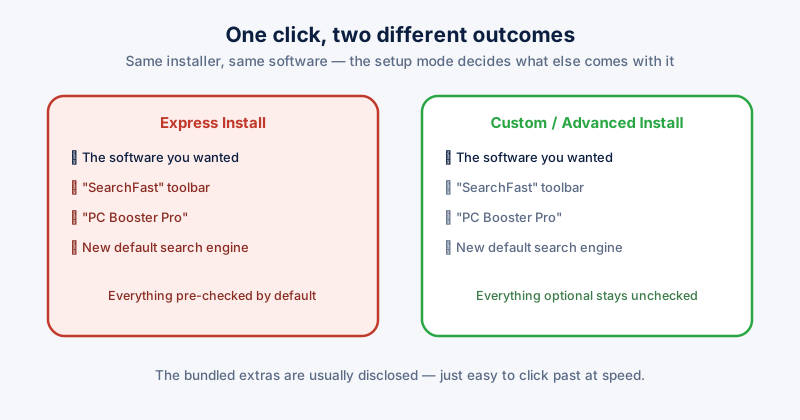
Adware and junkware occupy an odd middle ground: not quite malware in the classic sense — they're not usually trying to steal data or encrypt files — but not something you'd have installed on purpose either. Most of it arrives bundled inside the installer for something else, opted into by default, unchecked by nobody in a hurry to finish an install.
How it actually gets on your PC
Free software, especially utilities and converters bundled through third-party download sites, commonly ships with an installer that defaults to "Express" or "Recommended" setup — a mode that pre-selects a browser toolbar, a "PC optimizer," a new default search engine, or a second, unrelated program alongside the one you actually wanted. Choosing Custom or Advanced install instead usually reveals a set of unchecked boxes for exactly this kind of bundled software.
Signs it's already there
- New browser toolbars or extensions you don't remember installing
- Your default search engine or homepage changed without you doing it
- Frequent pop-up ads, including ones appearing outside your browser entirely, on the desktop
- Unfamiliar programs in your Start menu or in Apps & features
- A noticeably slower browser or PC with no other obvious cause
Removing it
- Go to Settings → Apps → Installed apps, sort by install date, and look for anything unfamiliar installed around the same time as software you do remember installing
- Uninstall anything you don't recognize or don't remember choosing to install
- Check your browser's extensions list (not just the toolbar you can see) — many browser-hijacking extensions don't show a visible toolbar at all
- Reset your browser's homepage and default search engine if either was changed
- Run a full scan with Windows Defender or your antivirus — most adware and junkware is detected and removable as a standard part of a scan, it's the finding-it-in-the-first-place that's the harder part
Removing the obvious program alone sometimes leaves a browser extension or a scheduled task behind that reinstalls it. If it comes back after uninstalling, check your browser's extensions and Task Scheduler for anything related, not just Apps & features again.
Preventing it going forward
- Always choose Custom/Advanced install over Express/Recommended for anything downloaded from outside the Microsoft Store or a vendor's own official site
- Read each screen of an installer rather than clicking Next repeatedly — bundled offers are usually disclosed, just easy to miss at speed
- Prefer downloading software directly from the vendor's own site over third-party "download portals," which frequently wrap installers with their own bundled extras
ETA System Doctor's Adware & Junkware Removal specifically hunts for this category — toolbars, bundled utilities, preinstalled bloatware — separately from its general malware scanning, and its Silent Bundleware Watchdog flags new software the moment it appears without you having run a scan, catching bundled installs closer to when they actually happen.