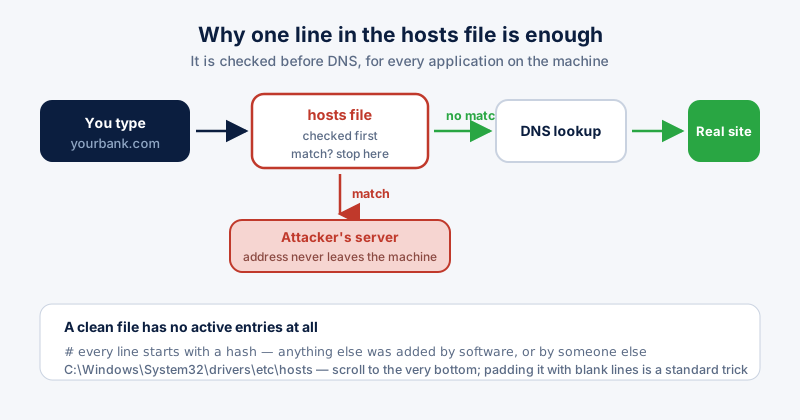
The hosts file maps names to addresses before DNS is consulted, for every application on the machine. That makes it the simplest possible DNS hijack: an attacker who adds one line can send a banking domain to their own server, or block security vendors so their software cannot update — and no amount of browser resetting undoes it. A hosts file integrity check takes two minutes and is worth doing whenever something looks wrong.
Where it lives and how to open it
The file is at C:\Windows\System32\drivers\etc\hosts. It has no extension. Editing it requires administrator rights: open Notepad from the Start menu, right-click and choose Run as administrator, then use File, Open and point at that path — you will need to switch the file type filter to All Files to see it.
What a clean file looks like
On a default Windows installation, every line is a comment beginning with #, and there are no active entries at all. Name resolution works entirely through DNS. Some legitimate software adds entries — development tools, VPNs, and some enterprise agents — so a non-empty file is not automatically a problem.
What to look for
- Entries naming banks, payment providers, email services, or social networks — there is rarely an innocent reason for these
- Entries pointing security vendors or Windows Update to 127.0.0.1 or 0.0.0.0, which blocks them
- A large block of entries below many blank lines, an old trick to push them out of sight in a maximised window
- Anything you cannot connect to software you installed deliberately
Scroll all the way to the bottom, and drag the scrollbar rather than trusting the window. Padding the file with blank lines so the additions sit off-screen is a standard technique.
Cleaning it up
- Copy the current contents into a separate text file first, so you can restore anything you remove by mistake.
- Delete the suspicious lines. Leave the commented lines alone.
- Save. If Notepad refuses, it was not opened as administrator — reopen it correctly rather than saving elsewhere.
- Run "ipconfig /flushdns" from a Command Prompt so cached lookups are discarded.
- Check again after a reboot. If the entries return, something on the machine is rewriting them and the file is a symptom rather than the cause.
If the entries keep coming back
Persistent rewriting means an active program or scheduled task is restoring them. Check installed programs by date, check Task Scheduler for unfamiliar tasks, and run a full malware scan. Our guide on cleaning up a hijacked browser covers the wider cleanup.
Also confirm your DNS settings have not been changed at the same time — hosts file tampering and DNS server changes frequently arrive together, and fixing only one leaves the redirect in place.
ETA System Doctor's Hosts File Integrity Guard watches for entries appearing outside your own settings and alerts you when one is added, which catches this earlier than a manual check ever would.