A browser extension can typically read every page you visit, including your email and your bank. People install them freely and then never look again — and unlike applications, extensions update silently, so one that was harmless when installed can change behaviour without you noticing. Learning to manage browser extensions properly is one of the higher-value security habits available, and it costs about ten minutes twice a year.
Auditing what you have
In Chrome, open chrome://extensions. In Edge, edge://extensions. In Firefox, about:addons. Read the list properly rather than skimming — most people find at least one they do not remember installing.
For each one, ask three questions: do I remember installing this, have I used it in the last month, and would I notice if it stopped working? Anything that fails all three should go. Removing an extension is instant and reversible.
Reading the permissions
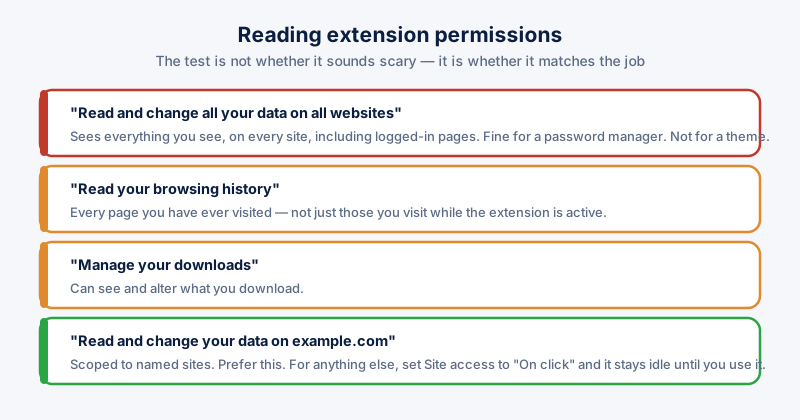
Click Details on an extension to see what it can do. The wording matters:
- "Read and change all your data on all websites" — the broadest permission there is. The extension sees everything you see, on every site, including logged-in pages. Reasonable for a password manager; not for a theme.
- "Read and change your data on <specific site>" — scoped and much safer. A shopping-coupon extension only needing shop domains is behaving properly.
- "Read your browsing history" — the extension knows every page you have visited, not just those you visit while it is active.
- "Manage your downloads" — it can see and alter what you download.
The test is not whether the permission is scary, but whether it matches the job. A note-taking extension that wants to read every site is asking for far more than it needs, and that mismatch is the signal worth acting on.
Restricting what you keep
For extensions you want but do not fully trust, Chrome and Edge let you limit site access. In the extension's Details, find Site access and change "On all sites" to "On click". The extension then does nothing until you click its icon, which keeps it useful while removing standing access to everything.
Why ownership changes matter
A recurring pattern: a popular extension with a good reputation is bought by someone else, and a later update starts injecting ads or collecting browsing data. The user sees no prompt, because the permissions were granted long ago and have not changed.
This is why a periodic review beats care at install time alone. Twice a year is enough for most people.
Before installing a new one
- Check the user count and reviews, and be suspicious of a large user count with very few reviews.
- Look at when it was last updated — abandoned extensions accumulate unpatched vulnerabilities.
- Read the permission prompt rather than clicking through it. This is the one moment you are actually shown what you are granting.
- Prefer an extension that asks for specific sites over one that asks for all of them, when both would do the job.
ETA System Doctor's Extension Manager lists what is installed across Chrome, Edge, and Firefox together and flags risky permission combinations, so a review takes a couple of minutes instead of a browser-by-browser trawl.