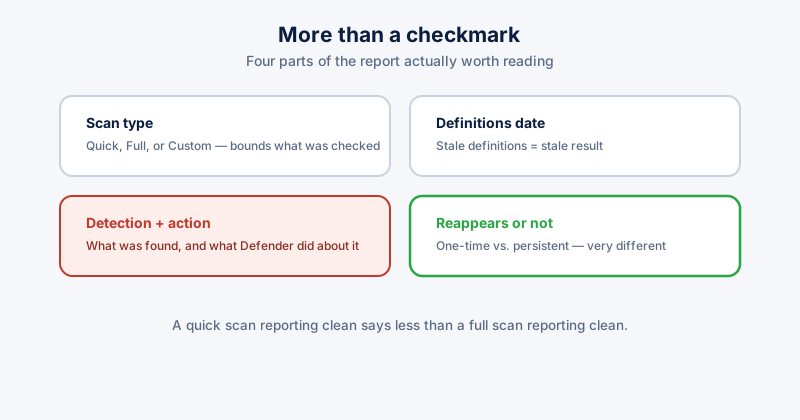
Windows Defender's scan results screen is easy to glance at and close without actually reading — a green checkmark or a threat count, and most people move on either way. The report actually contains a few specific, useful pieces of information worth knowing how to read, especially the one time it does find something.
The scan types, and why the type matters
- Quick scan — checks the locations malware most commonly hides: running processes, startup items, common infection points. Fast, and sufficient for routine, regular checking.
- Full scan — checks every file on every drive. Thorough, but can take hours depending on how much data you have. Worth running if you have a specific reason to suspect something a quick scan might have missed, not as a routine daily check.
- Custom scan — a specific folder or drive you choose, useful for checking a newly downloaded file or an external drive without scanning everything else
Reading a clean result
"No current threats" means nothing matching Defender's current detection database was found in whatever locations that scan type covers — it's a real, meaningful result, but it's specifically bounded by the scan type run and by how current Defender's definitions were at the time. A quick scan reporting clean says less than a full scan reporting clean, and either says less the further out of date the definitions were.
When something is actually found
- Check Protection history (Windows Security → Virus & threat protection → Protection history) for the specific detection name and the action Defender actually took — quarantined, removed, or (less commonly) allowed if you or another app added an exclusion
- A detection that was quarantined or removed and hasn't reappeared on a follow-up scan is typically resolved — no further action needed beyond confirming that follow-up scan came back clean
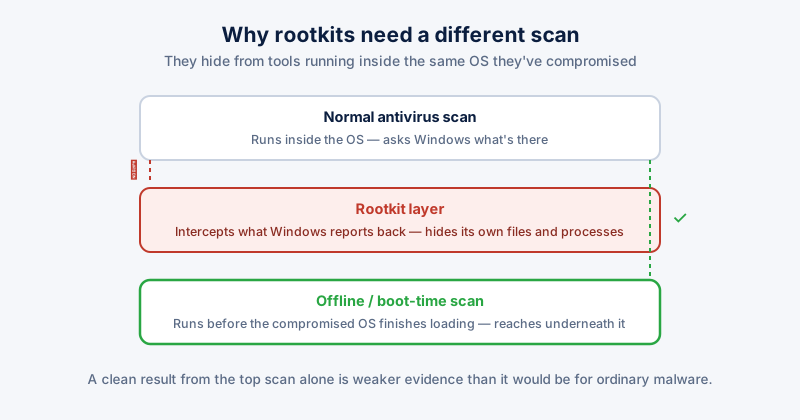
- A detection that keeps reappearing after removal is the more serious case — it suggests either a rootkit-level infection resisting normal removal, or a source actively reintroducing it (a scheduled task, a startup entry, a compromised browser extension reinstalling it)
A single detection of a low-severity item (some adware and potentially-unwanted-program detections fall here) that's cleanly removed is a different situation from a high-severity detection or one that persists — Defender's own severity rating on the detection is worth reading, not just the fact that something was found at all.
Confirming Defender itself is actually current
Windows Security → Virus & threat protection → Virus & threat protection updates shows when definitions were last updated. Definitions that are days or weeks out of date mean even a clean scan result is checking against a stale picture of current threats — worth updating manually if it's been a while, rather than assuming automatic updates always ran on schedule.
ETA System Doctor's Rootkit & Defender Scans surfaces Defender's own scan status and protection history directly in-app, so confirming a scan actually ran recently — and reading what it found — doesn't require navigating through several layers of the Windows Security app to find the relevant screen.